Edit Text
To access the text edit form, that allows you to edit your text, click on the region on the background or the region containing the text on the left.
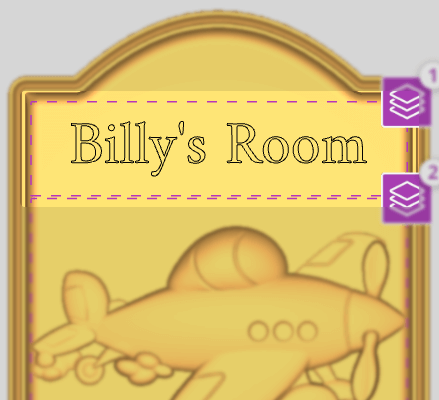
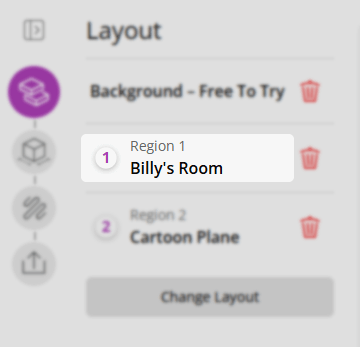
There are two types of text regions:
- Curved text: Lay the text out to follow a curve (supports single line only)
- Box text: Fit the text so it doesn't overflow the box (supports multiple lines)
Orientation
The Orientation section provides two buttons for adjusting the text orientation within the region:
- Rotate: Rotates the text within its region. For box text this rotates 90°; for curved text this rotates 180° (flipping the text upside down along the curve).
- Flip: Mirrors the text horizontally (around the Y axis).
Text entry
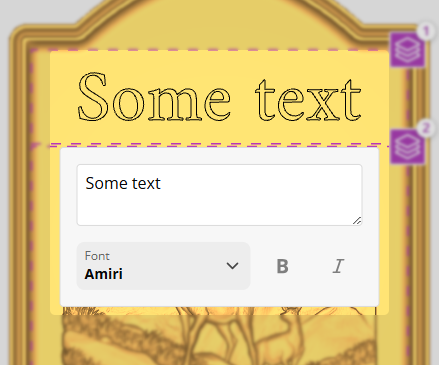
Text entry happens through the Text Entry Popup in the view. This is where you can type your text and you can also select your font and style.
Fonts
The first section of the form shows the font you have for this text region. We provide a variety of fonts suitable for every occasion and are continuously expanding the list.
We've done our best to support a wide variety of languages. Where the language is not supported by the font you selected, we'll fall back to a generic font for that language.
Text Style
You can change the style of the font (bold, italic, or both) from the Font Style section.
Some fonts may not support all styles, in which case the style will be disabled.
Text Height
You can adjust the height of your text via the Text Height section.
The height is only allowed to go to a defined maximum so that it doesn't exceed the region which contains it.
When you have multiple lines of text, you will notice a third marker appearing in the height slider. This allows you to set all the lines to have the same height. Any size greater than that and some lines which reached their maximum height won't be affected.
Line Spacing
When you have multiple lines of text, you can adjust the spacing between them using Line Spacing.
- The minimum value is the most compact (characters from different lines will probably be touching)
- The maximum value is stretching the lines across the box
- The middle value is where the lines are spaced equally within the box leaving the same gap above and below.
Multiple lines aren't supported for curved text so this section is not available there.
If the lines are already occupying the maximum height they can, then this slider will appear to do nothing. In this case, you'll need to reduce the text height to have more free space to use for the line spacing.
Text Alignment
Text Alignment control the vertical/horizontal alignment of the text within the region
- Horizontal: Align the text horizontally within the region (Left, Centre, Right)
- Vertical: Align the text vertically within the region (Top, Centre, Bottom)
When you have Right-To-Left text, the horizontal alignment options will be reversed.