Edit Model
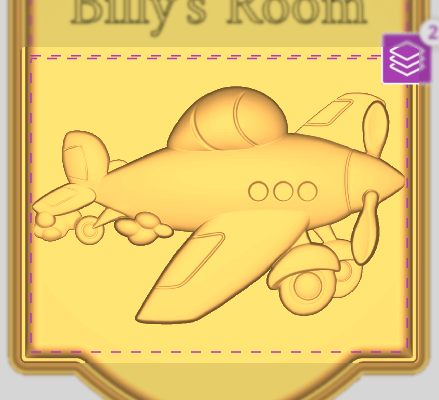
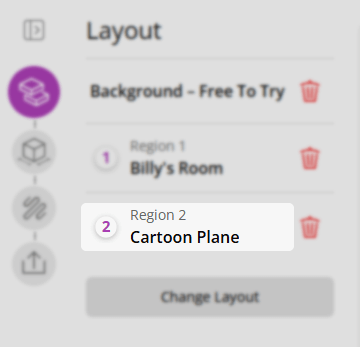
To access the model edit form, that allows you control how a 3D model is fitted into a layout region, click on the region on the background or the region containing the model on the left.
Scaling
When in the model-edit step, a resize handle appears overlaid on the model's region in the view. Drag it along the diagonal to scale the model between 10% and 100% of the region size. The bounding box updates live during the drag; the scale is committed on release.
Positioning
A position handle appears at the centre of the model's region. Drag it to reposition the model within the region. The centre point is clamped so it cannot be dragged outside the region bounds.
Double-click the position handle to reset both the position and scale back to their defaults.
When positioning is available, the resize handle scale range is extended from 100% up to 200% of the region size.
Height Position
A Height Position slider adjusts the depth at which the model sits relative to the material surface. The slider runs from 0 to 2, with snap points at 0, 1, and 2 — click any tick mark to jump straight to that position. Only appears when a background layout is present.
Replace/Swap Model
All Models
To replace or swap the model or text in a region, a model/element button appears in the step header.

EasyCreate Model
For EasyCreate models, an EasyCreate actions button appears in the step header.

It provides two options:
Edit in EasyCreate
- Opens the model in EasyCreate in a new tab for further editing.
Re-import model
- Pulls the latest version of the model from EasyCreate and replaces the current one in the layout (useful after editing in EasyCreate).
Orientation
The Orientation section provides two buttons for adjusting the model's positioning within the region:
- Rotate: Rotates the model 90° clockwise
- Flip: Mirrors the model horizontally (around the Y axis)
Model Fit Style
The Model Fit Style dropdown controls how the model relates to the background surface. Three options are available:
- Regular: The model sits on top of the background surface. Blending controls are available when a background is present.
- Dish: The model is fully recessed into a dish-shaped surface. A Dish Shape slider controls the shape of the dish.
- Recess: The model is fully recessed into a flat recessed surface with a border around it. A Border Width slider controls how wide that border is.
Use Blending
The Use Blending switch enables a smooth transition between the model and the background surface. Only available in Regular style when a background layout is present.
When disabled, the model sits directly on the surface with no blending and the blend amount is set to zero.
Blend Amount
The Blend Amount slider (0–1) controls the strength of the transition between the model and the surrounding surface. Only appears in Regular style when Use Blending is enabled.
Dish Shape
The Dish Shape slider controls the curvature of the dish the model is recessed into. Only available in Dish style.
Border Width
The Border Width slider controls the width of the recessed border around the model. Only available in Recess style.
Use Model Boundary
The Use Model Boundary switch makes the recessed area follow the model's own outline rather than the boundary of the layout region.
Only available in Recess style.
Smooth Corners
The Smooth Corners switch rounds the corners of the recessed area. Only available in Dish and Recess styles.
Not shown when Use Model Boundary is active.